Voiceenhancer
Enhance audio
English

Practical audio guide

Learn How to Use Voice Enhancer Online

This guide shows how to use voice enhancer online with a simple, repeatable workflow: start with a clean source, improve the parts that distract listeners, and review the result before sharing it.

Review the result before use
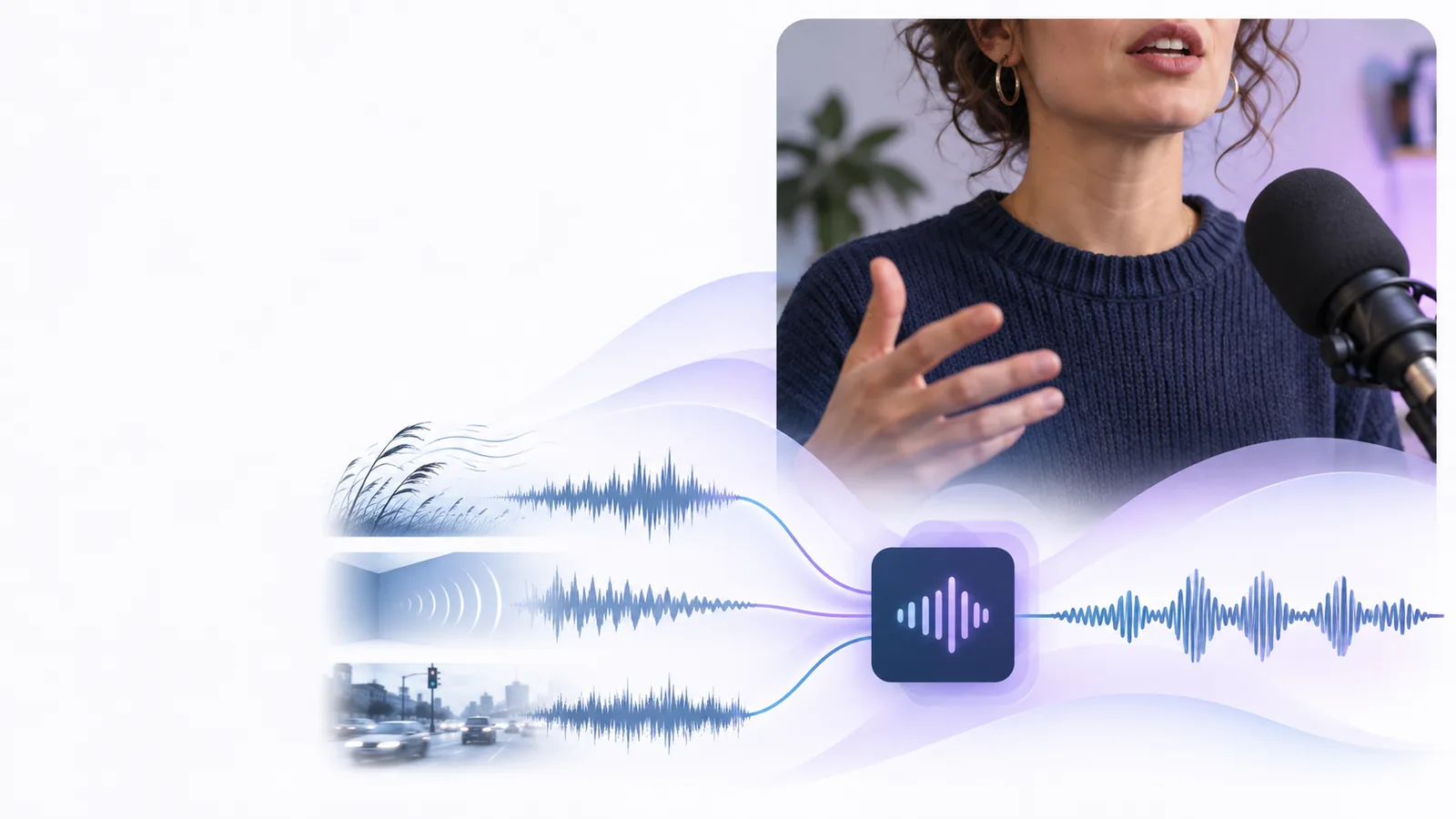
Voice recording being prepared for online enhancement

Core process

Three parts of the enhancement process

An online voice enhancer is easiest to use when you treat it as a short editing loop rather than a one-click replacement for recording technique.

  1. 1

    Prepare the source

    Choose the clearest version of the recording you have. Trim long silence, check that speech is audible, and avoid uploading a file that is already heavily distorted or clipped.

  2. 2

    Describe the improvement

    State what needs attention, such as distracting background sound, uneven speech presence, or a voice that is difficult to follow. Specific guidance keeps the intended result clear.

  3. 3

    Review and refine

    Listen to the processed result from beginning to end. Check pronunciation, pauses, tone, and the relationship between speech and any music before using it in a project.

Apply the method

Use the workflow for the recording you have

The same sequence works across several common projects, but the review criteria change with the audience and the final destination.

Video creator

You have spoken footage with room noise or inconsistent voice presence. Begin with the original clip, describe the distracting element, and compare the processed speech against the visuals.

A more intelligible track that is easier to balance beneath music, captions, or supporting footage.

voice enhancer in video

Podcast host

An interview contains quiet answers, louder questions, or a changing recording environment. Work from the cleanest source and review every speaker instead of judging only the first minute.

A conversation that is easier to follow without losing the natural rhythm of the speakers.

voice enhancer examples online

YouTube educator

A lesson has useful information but the narration competes with fans, traffic, or a reflective room. Keep the words and pacing intact while targeting the background distraction.

Clearer instruction that places less effort on the viewer and leaves more attention for the lesson itself.

voice enhancer for youtube

Remote presenter

A presentation recording sounds distant or uneven because the microphone position changed. Compare the beginning, middle, and end before deciding whether the improvement is consistent.

A steadier spoken track for a replay, internal presentation, or shared recording.

voice enhancer online

Quality check

Limits and edges to check before publishing

Enhancement can improve a usable recording, but it cannot reliably recover information that was never captured. Compare the original and processed versions across these attributes.

Original recording Enhanced recording
Speech presence May sound distant, quiet, or masked by the surrounding room. Speech can be easier to hear when the source contains recoverable voice detail.
Background distraction Fans, traffic, room tone, or handling noise may compete with the speaker. Unwanted sound may be reduced, but strong overlapping noise can remain audible.
Clipping and distortion Harsh peaks or clipped words may already have lost their original detail. Processing cannot reliably recreate speech information removed by severe clipping.
Natural tone Preserves the speaker's untouched character, including flaws and room colour. May sound more controlled, but should be checked for an unnatural or over-processed tone.
Multiple speakers Different voices may vary in loudness, distance, and recording quality. Each speaker still needs a careful listen; one setting may not suit every voice equally.
Music and sound effects The voice may compete with a busy mix or loud transitions. A clearer voice can help, but the complete mix still needs its own level and timing review.
Source quality A clean, well-positioned microphone recording gives the process more useful detail. An improved result still depends on what was present in the source file.

Next recording

Turn a rough voice track into a clearer starting point

Use the workflow on one real recording, describe the problem you hear, and review the result against the original. If the change helps, repeat the same check on the rest of the project rather than assuming every clip needs identical treatment.

  • Start with the clearest source available
  • Describe the distraction you want to address
  • Listen before publishing or sharing
Improve my recording

Common questions

Frequently asked questions

Start with the clearest original recording available and confirm that the spoken words are audible. Remove unnecessary silence if useful, but keep enough context to judge the speaker's natural tone and pacing.

Describe the problem you can hear rather than asking for a vague improvement. Examples include reducing background noise, making speech easier to understand, or balancing a voice that sounds distant.

No. Enhancement may help when the source contains usable speech detail, but severe clipping, missing words, heavy overlap, or extreme distortion can limit the result. Always compare the processed version with the original.

Listen from start to finish, preferably on the device or headphones your audience may use. Check intelligibility, natural tone, pronunciation, pauses, background sound, and how the voice fits with music or video.

Not necessarily. Recordings can differ in microphone distance, room sound, speaker, and background noise, so review each important clip and use consistency of listening experience as the goal.

Enhance audio
Enhance audio